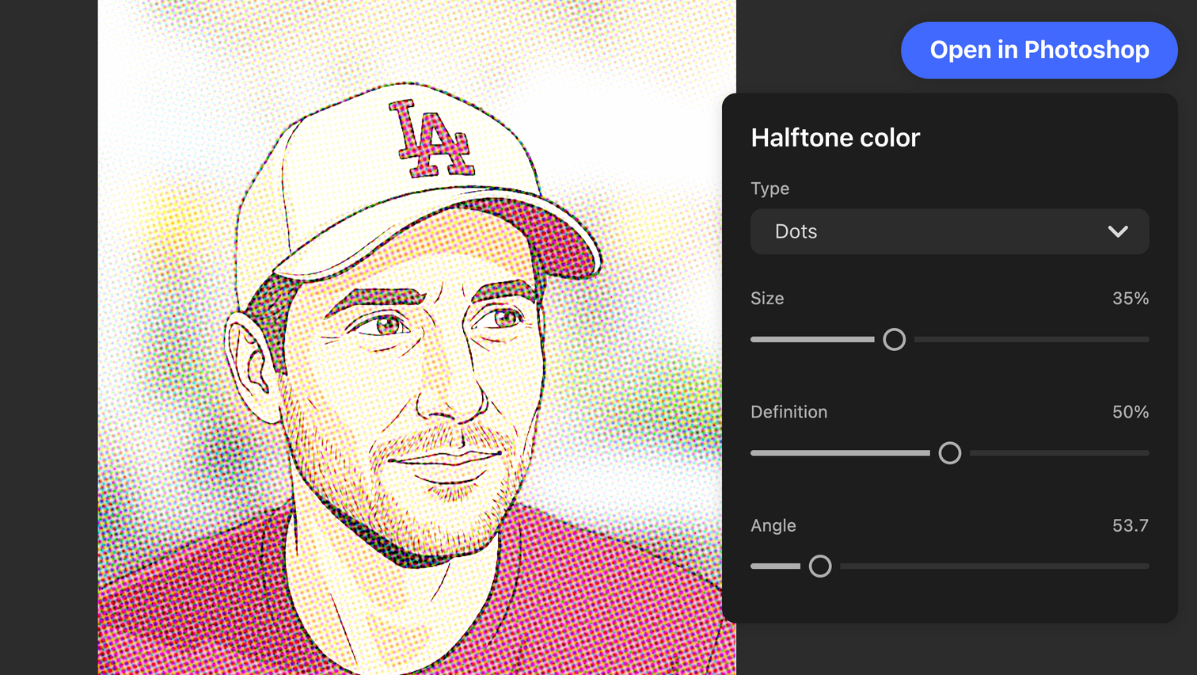
I recently discovered that you can edit photos directly within ChatGPT using Adobe Photoshop. No switching between different tools or applications. Everything happens in one place.
When I first heard about this, skepticism set in. After trying it myself, I realized how valuable it could be for quick edits and creative projects. Here’s everything you need to know to get started.
How to Use Photoshop Inside ChatGPT
Get Photoshop Connected to ChatGPT
First, connect your Adobe Photoshop to ChatGPT. The process takes just a moment.
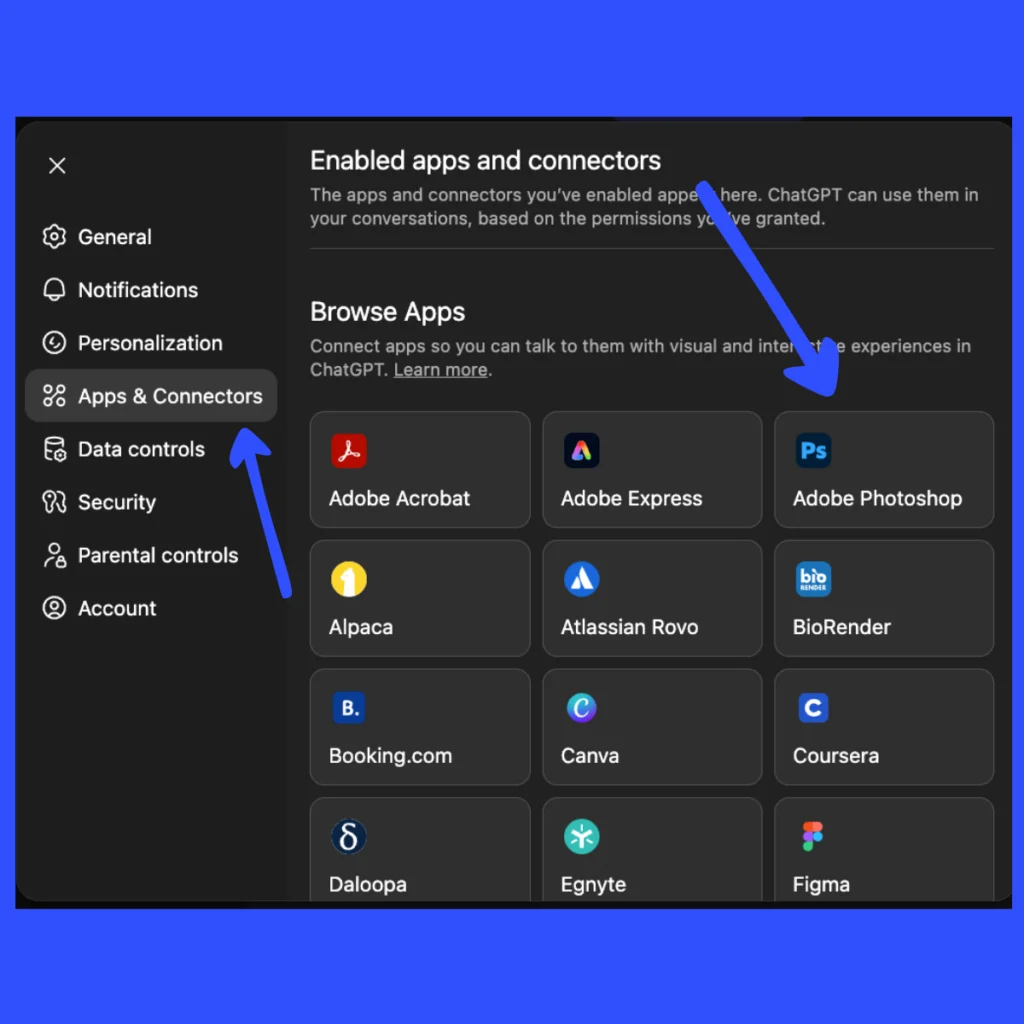
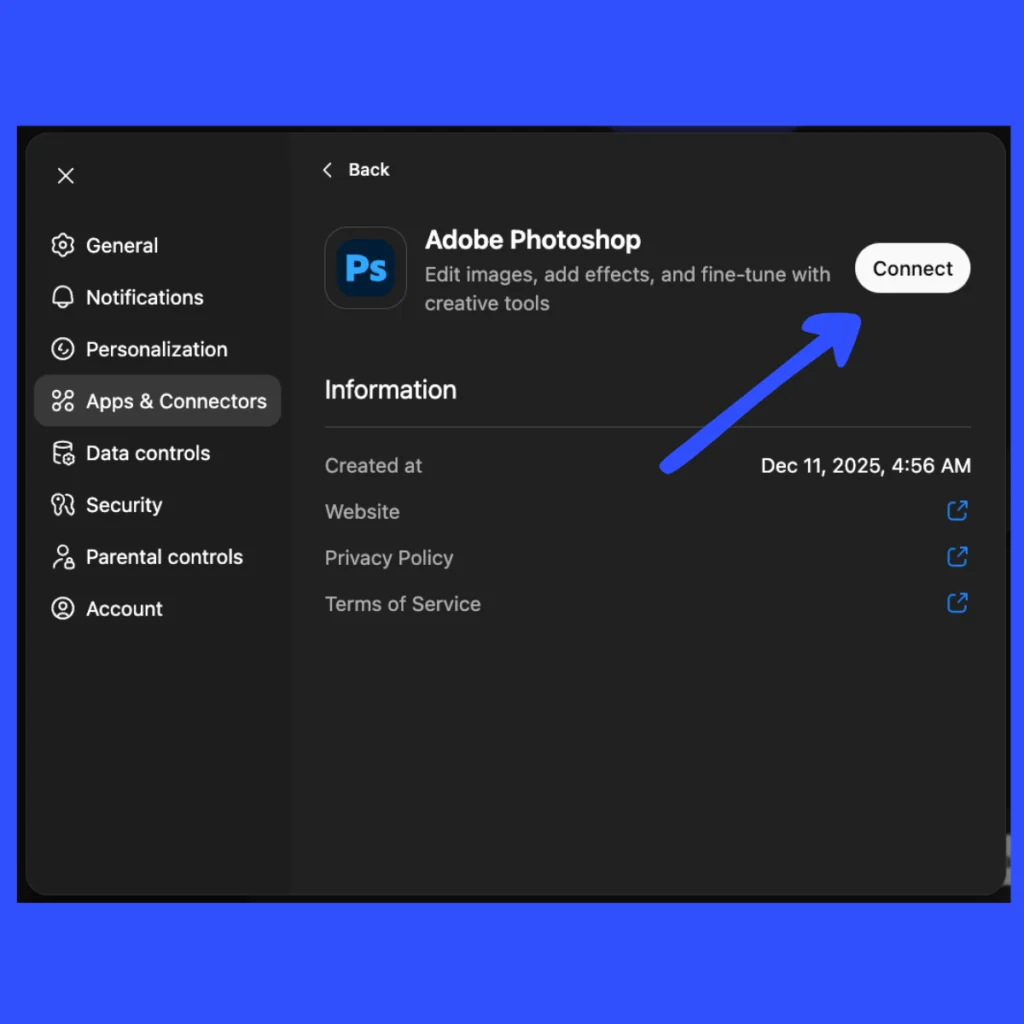
Visit chatgpt.com and click your name in the bottom left corner. Select the Settings option. Locate the “Apps and Connectors” tab and click it. Find “Adobe Photoshop” in the list. Click on it, then click “Connect.” A second “Connect” button appears for accepting terms and conditions. Click that as well.
 How to Turn Your Photo into Viral Figurine Style Using Google Gemini
Find “Adobe Photoshop” in the list. Click on it, then select “Connect.” A second “Connect” button appears for accepting the terms and conditions. Click that one as well.
 How to Identify AI Photos using Gemini
Once connected, close the settings. That’s it. You’re ready to start editing.
Start a New Photoshop Session
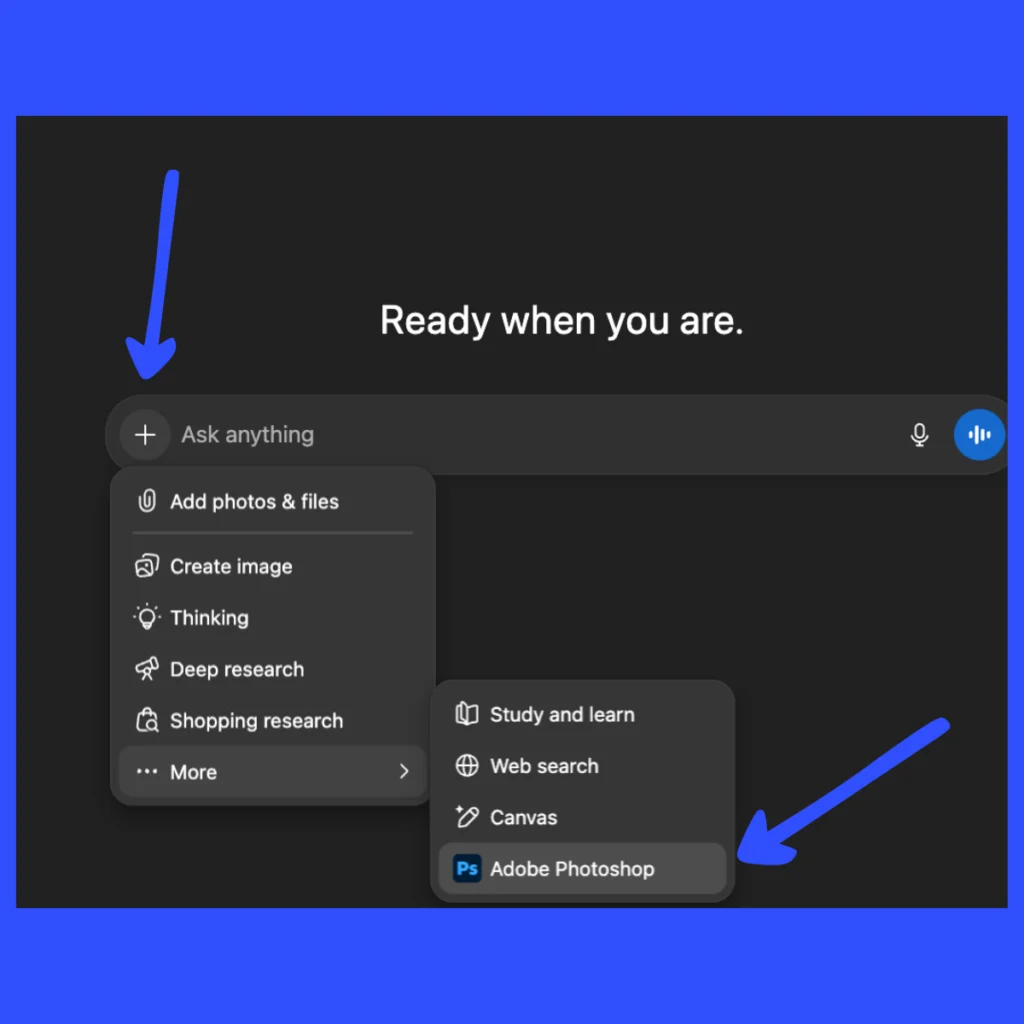
Creating a new Photoshop workspace is straightforward. Click the plus icon at the top of ChatGPT to start a new chat.
Navigate to “More” and select “Adobe Photoshop.” The Photoshop icon now appears directly below the prompt box. This indicates Photoshop is active and ready.
 How to Create Passport Size Photo Using Gemini
Add a Photo to Edit
Now bring in the image you want to work on. Click the plus icon again and choose “Add photos & files.”
Select the photo from your computer. Once chosen, the image appears in the prompt box as your reference. You can now start editing using simple text commands.
 How to Create Presentations Using Gemini
Edit Your Image With Text Commands
This is where the experience diverges from traditional Photoshop. Instead of searching through buttons and menus, you simply describe what you want in plain language.
Type your edit request directly into the prompt box where you normally chat with ChatGPT. Be as specific or general as you prefer. More detail typically produces better results.
One important note: ChatGPT won’t perform generative fill replacements or create entirely new content where none existed before.
It can adjust colors, add effects, change saturation, apply filters, and modify existing elements in your image. But it cannot generate objects that weren’t there originally.
Here are some practical examples of edits you can request:
- “Make the background black and white” – Keeps your subject in color while converting the background to grayscale.
- “Add a creative effect” – ChatGPT applies an artistic effect it determines works well with your image.
- “Add a halftone effect” – Gives your photo that classic comic book or vintage print appearance.
- “Apply a duotone effect” – Limits your image to two colors, creating a striking artistic look.
- “Remove the duotone effect” – Easily undo effects if you change your mind.
- “Add more vibrance to the image” – Makes colors more vivid and energetic without altering the overall tone.
- “Remove background of the main subject” – Eliminates the background and provides a proper transparent result.
These examples aren’t limitations. You can request anything that adjusts or enhances existing image content. ChatGPT interprets requests effectively even without technical Photoshop terminology.
After typing your command, press Enter or click the black up button. ChatGPT processes your request and applies the changes. The edited version appears directly below with immediate results.
Fine-Tune With the Properties Panel
After ChatGPT completes an edit, further adjustments are possible. Locate the properties panel icon on the top right of your edited image.
Click to expand the panel. Sliders and controls appear for fine-tuning the adjustment. This helps when you want the effect stronger, weaker, or slightly modified.
Go Deeper With Photoshop on the Web
Sometimes adjustments exceed what ChatGPT can handle. That’s when you open your image in Photoshop on the web.
Click the “Open in Photoshop” button. ChatGPT creates a link for you. Click “Ready to open” to launch Photoshop on the web.
Here’s the advantage: all your adjustments transfer as individual adjustment layers with layer masks. Nothing from your work gets lost.
Find All Available Adjustments and Effects
Want to know exactly what’s possible? ChatGPT can provide a complete list.
Type this message: “Give me a comprehensive list of all the adjustments you can apply with the Photoshop app.”
You’ll receive all available adjustments. For effects instead, type: “Give me a full list of the effects.”
This eliminates guesswork about what’s possible. You’ll know exactly which commands to use.
Why This Matters
Using Photoshop inside ChatGPT means fewer open windows and less app switching. Quick edits happen right where you’re already working. For simple adjustments and effects, the workflow is fast and efficient.
This feature won’t replace Photoshop for serious design work, but it’s ideal for quick edits and creative experiments. For complex needs, you can always transition to Photoshop on the web with all your work preserved.
Try it next time you need a quick photo adjustment. The amount you can accomplish with a few text commands might surprise you.