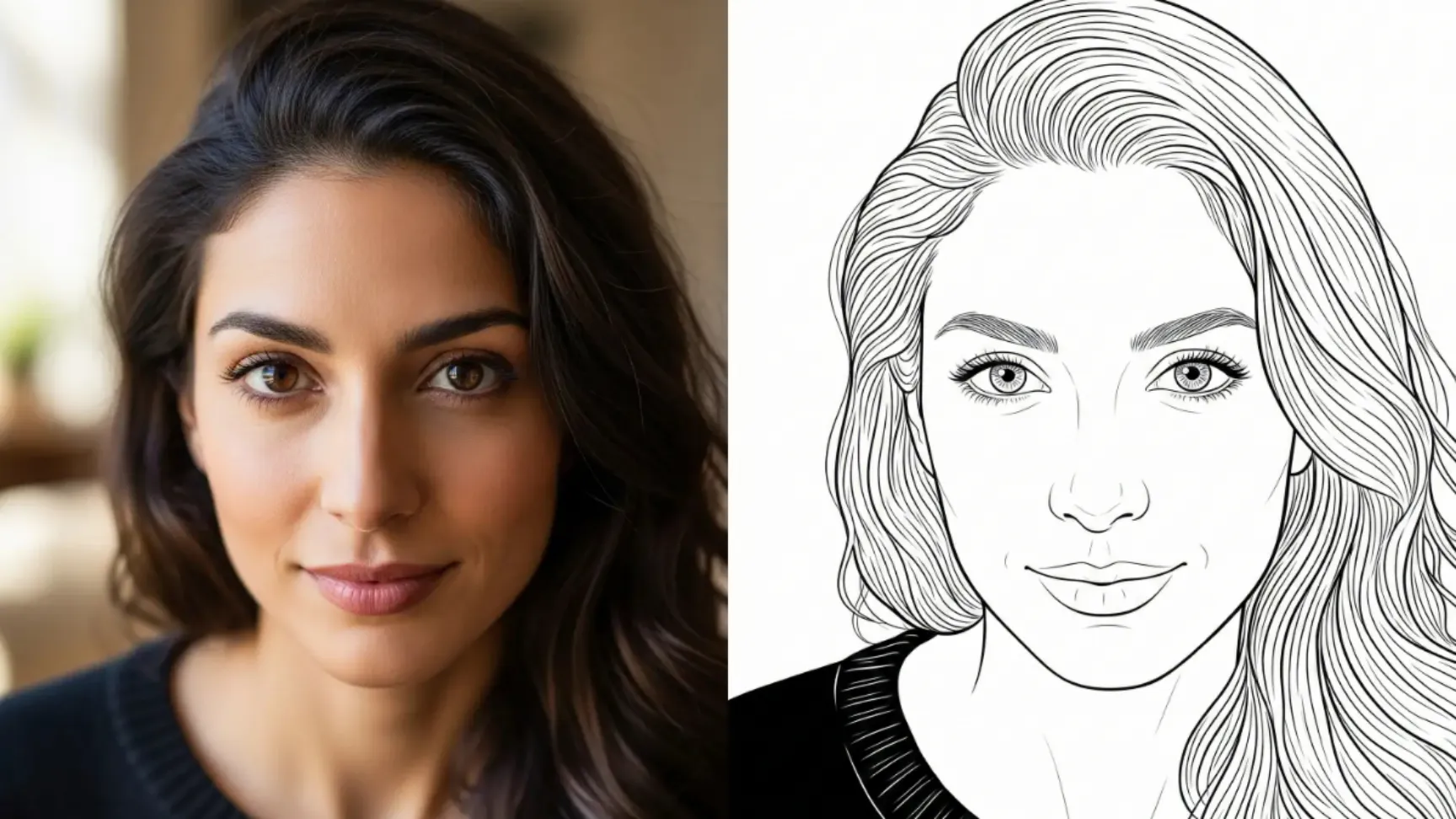
Line art is precisely what the term suggests: imagery constructed entirely from linear elements. Rather than employing shading, color fills, or gradients, line art relies on individual strokes to form compositions. Visualize a skilled artist using pen to trace outlines without adding interior details.
Line art’s distinctive quality lies in its elimination of extraneous elements. What remains is the essential form of the subject. A human face reduces to eyes, nose, mouth, and jawline. A landscape simplifies to hills, trees, and pathways. The result is clean, minimalist, and remarkably impactful.
Google Gemini’s Image Processing Capabilities
Gemini’s Imagen model demonstrates notable proficiency in photo editing tasks. It processes complex operations efficiently without performance degradation. Testing on portrait photographs yielded impressive outcomes: clean linework, accurate proportions, and professional sketch-quality aesthetics.
The process requires no expensive software packages or artistic skills. Simply provide your photograph and precise instructions.
How to Get Started
The process is straightforward. You don’t need to download anything or learn new software.
Step 1: Go to Gemini
Open your browser and head to gemini.google.com (or use your Gemini app). Sign in with your Google account if you’re not already logged in.
Step 2: Start a New Chat
Click on the option to start a new conversation. You’ll see a blank chat window ready for input.
Step 3: Upload Your Photo
Look for the attachment button (usually a plus icon). Click it and select the photo you want to convert. The image uploads to the chat.
Step 4: Use the Right Prompt
This is where the magic happens. Copy and paste this prompt into your chat:
Turn this photo into a clean black and white line art illustration, focusing on facial features and outlines. Use smooth, confident pen strokes with fine details in the hair, eyes, and clothing folds. The lines should be crisp, elegant, and evenly weighted. No shading or color, just pure outlines. Maintain correct proportions and preserve the likeness of the original person. The background should be plain white or minimal with subtle contour lines only. Artistic style similar to professional digital ink drawings or minimalist portrait sketches. High resolution, vector-like finish.
Step 5: Download Your Result
Once Gemini processes your request, you’ll get a line art version of your photo. Download it on your device.
Break Down of the Prompt
I didn’t write that prompt by accident. Each part does something important. Let me walk you through it.
“Turn this photo into a clean black and white line art illustration”
This tells Gemini what you want, a line art style, not a photo filter or abstract effect. The “clean” part ensures no messy lines. Black and white keeps it simple and elegant.
“focusing on facial features and outlines”
If you’re converting a portrait, this makes sure the AI pays attention to the face. It won’t waste detail on the background. For photos of people, your eyes, nose, mouth, and expression matter most.
“Use smooth, confident pen strokes with fine details in the hair, eyes, and clothing folds”
This prevents the output from looking robotic or shaky. You want lines that look like an artist drew them by hand. The instruction about hair, eyes, and folds tells the AI where to add more detail so the image looks professional.
“The lines should be crisp, elegant, and evenly weighted”
Crisp lines mean no blur or softness. Evenly weighted means no line is thicker or thinner than another without reason. This creates that premium, finished look.
“No shading or color, just pure outlines”
This is the key to true line art. You’re rejecting anything that isn’t a line. No gray tones. No color. Just black lines on white.
“Maintain correct proportions and preserve the likeness of the original person”
Sometimes AI gets creative and changes how someone looks. This instruction keeps the AI honest. Your nose should look like your nose.
“The background should be plain white or minimal with subtle contour lines only”
The background shouldn’t compete with your main subject. A plain white background keeps the focus on the person in the photo. Subtle contour lines add a tiny bit of depth without being distracting.
“Artistic style similar to professional digital ink drawings or minimalist portrait sketches”
This references existing art styles so Gemini understands the vibe you’re after. It’s not abstract. It’s not cartoon-like. It’s professional and clean.
Real Examples
Let me show you what this actually looks like in practice.
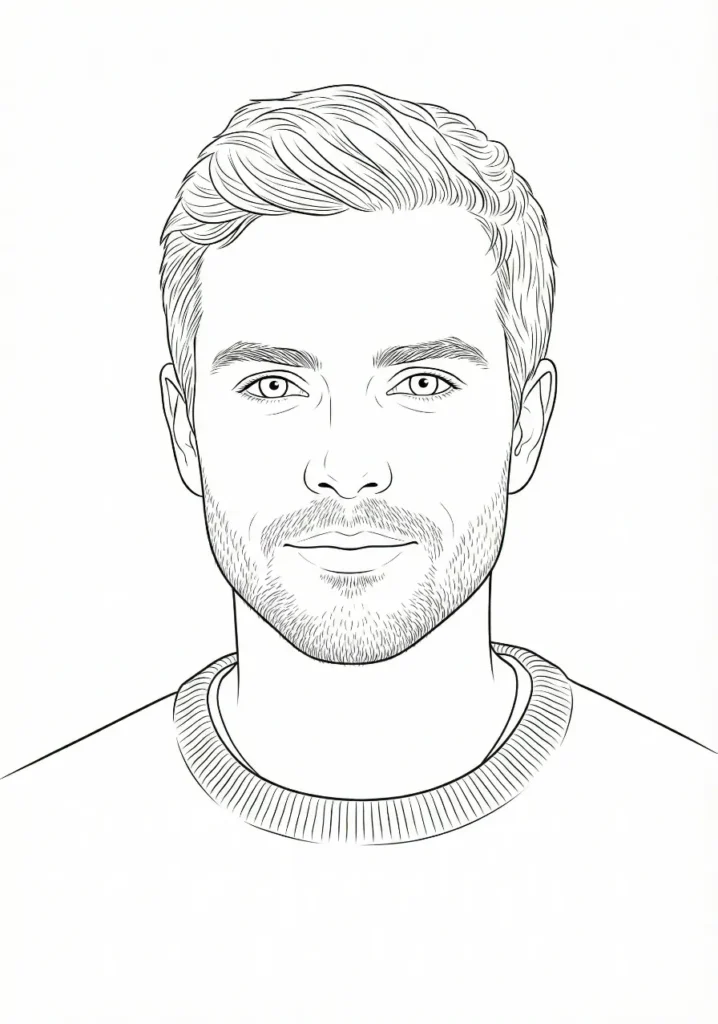
Example 1: A Man’s Portrait
Following is the reference photo I used.

 How to Turn Your Photo into a Caricature Using Gemini
When I ran it through Gemini with the prompt, the result captured his expression perfectly. His smile came through in the curve of the mouth. His hair texture showed up in the fine lines. It looked like a professional sketch.
 How to Create Beautiful 3D Cartoons Using Gemini Nano Banana
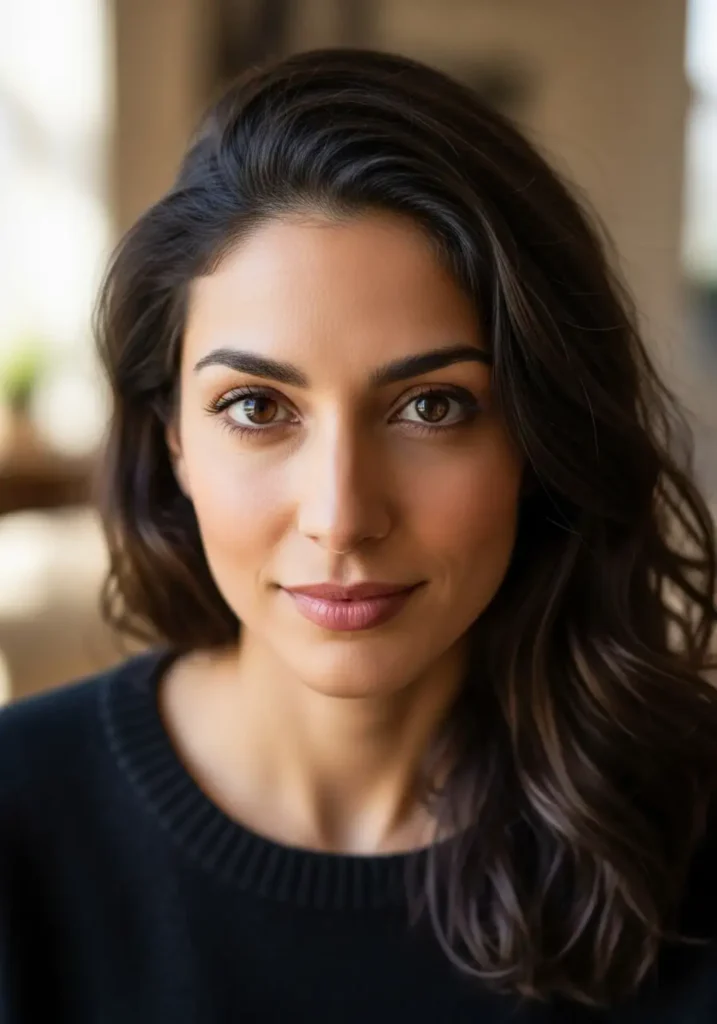
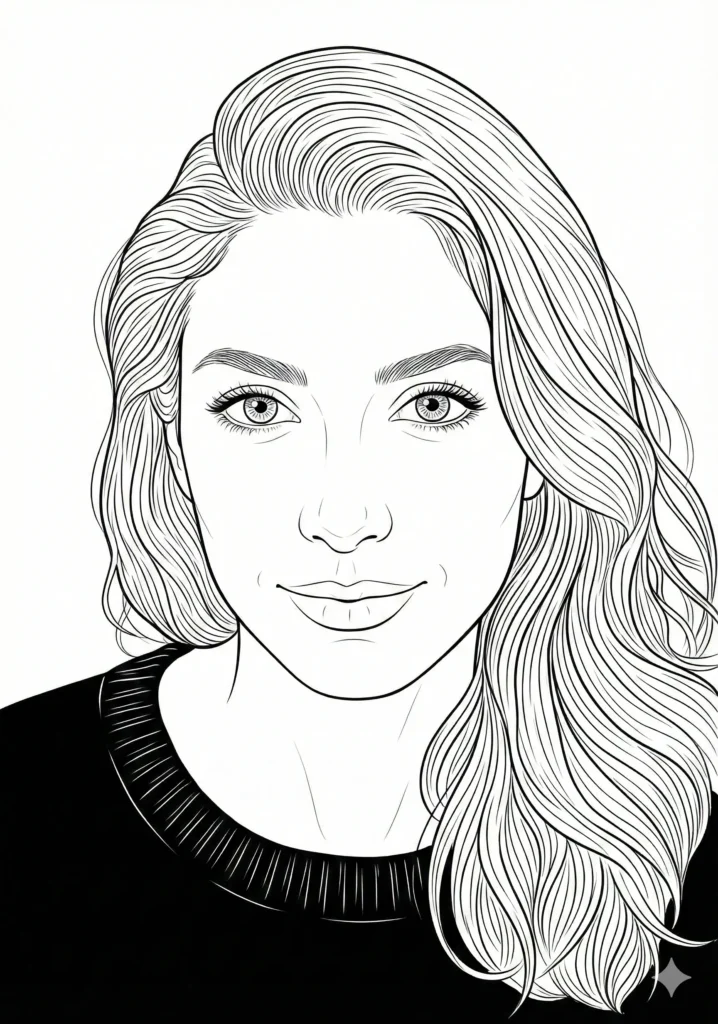
Example 2: A Woman’s Portrait
Following is the reference photo I used.
 How to Turn Your Photo Into a Stylish Digital Portrait Using Gemini
The line art version did something cool, it simplified the pattern into elegant curves, but kept the details of her face intact. Her eyes got special attention with fine details around the lids and lashes. The hair came out flowing and natural-looking, not choppy.
 31 Art Styles for ChatGPT Image Generation
Here’s a rewritten version:
Optimization Strategies
Lighting Quality – Use well-illuminated photographs. Dark or blurry source images produce compromised line art. Clear, properly lit photos with distinct features yield optimal results.
Single Subject Focus – Portraits outperform group photographs. The AI processes individual faces more effectively. For multiple subjects, convert individual portraits separately.
Angle Experimentation – If initial results disappoint, capture alternative angles and reprocess. Different perspectives often produce varying quality outcomes.
Prompt Refinement – Adjust instructions based on results. Excessive background detail? Add “extremely minimal background” to your prompt. Lines appearing too thin? Request “thicker, more visible line strokes.”
Practical Applications
Line art possesses enduring aesthetic appeal. Whether for printing, framing, profile pictures, or tattoo design references, quality line drawings serve multiple purposes effectively.
Gemini simplifies the conversion process considerably. No artistic expertise required. No expensive software necessary. Just a quality photograph and precise instructions.
Test it yourself. Select a portrait photograph, navigate to gemini.google.com, and input the prompt. You’ll likely generate output worth preserving.