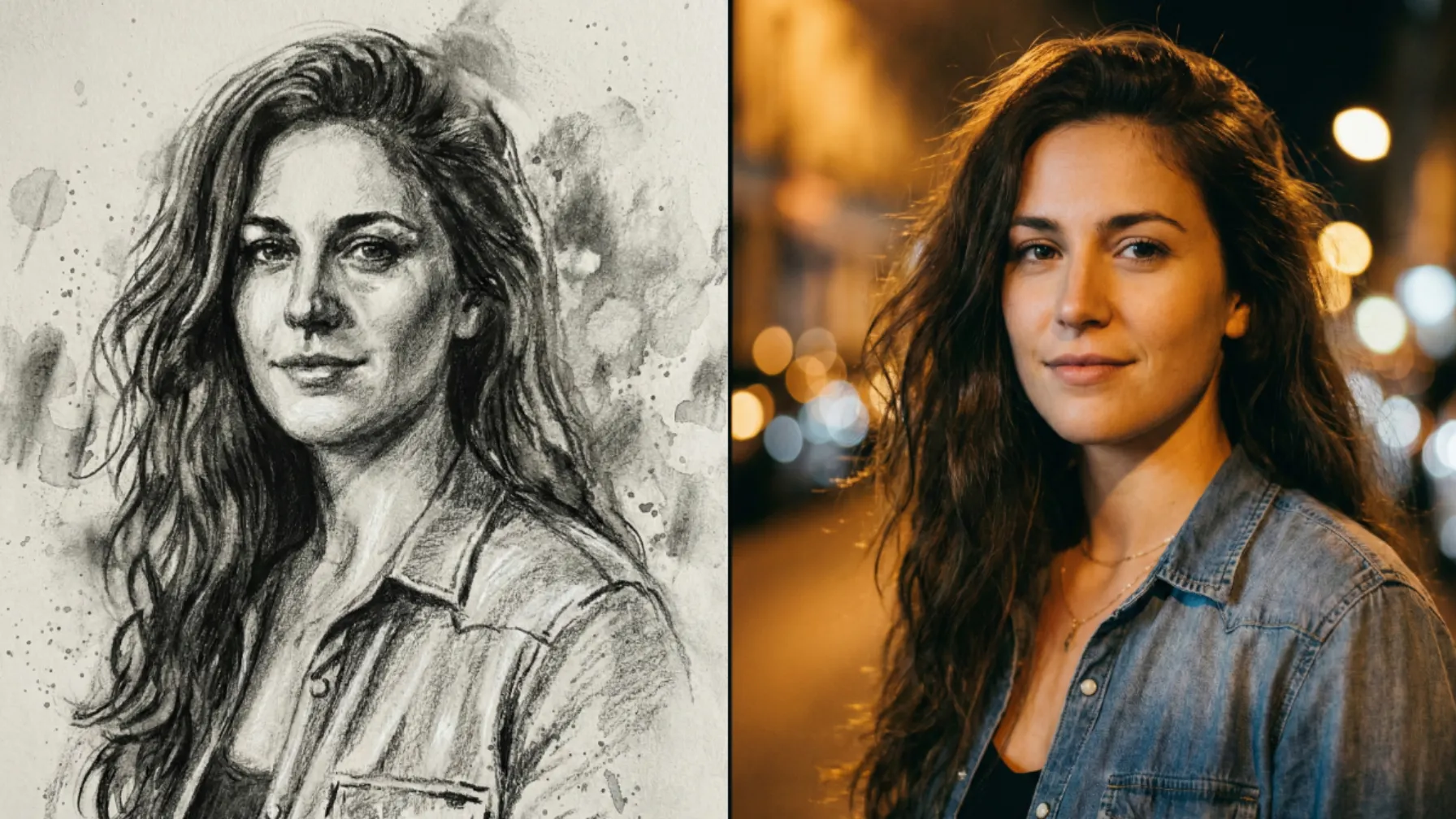
There’s a reason painted portraits have stayed popular across centuries—they don’t just show a face, they capture a feeling. A great painting reveals emotion, personality, and atmosphere in a way that ordinary photos often can’t.
Artists throughout history developed countless techniques to express their ideas. Some relied on bold, textured brushstrokes to add intensity and depth. Others preferred soft, delicate layers of color to create mood and subtle storytelling. Every style carries its own character and artistic identity.
The challenge, of course, is that traditional painting requires years of practice and dedication. Most people don’t have the training—or the time—to master these skills. And that’s exactly where modern technology steps in.
Google Gemini’s Nano Banana Pro Model
Google’s Gemini platform now offers powerful tools that can transform ordinary photos into stunning artwork. Its image-editing capabilities are surprisingly advanced, giving you the look and style of a real painting—without ever touching a brush.
The best part? It’s incredibly simple. No complex setup, no extra software, no technical skills required. With just a few clicks, your photo is instantly turned into art.
How to Get Started
Head to gemini.google.com and start a new chat. Look for the option that says “Thinking with 3 Pro” and select it. This version has better processing power for image work.
Next, attach your photo. You can upload directly from your device. Once your photo is in, you’re ready to pick a painting style.
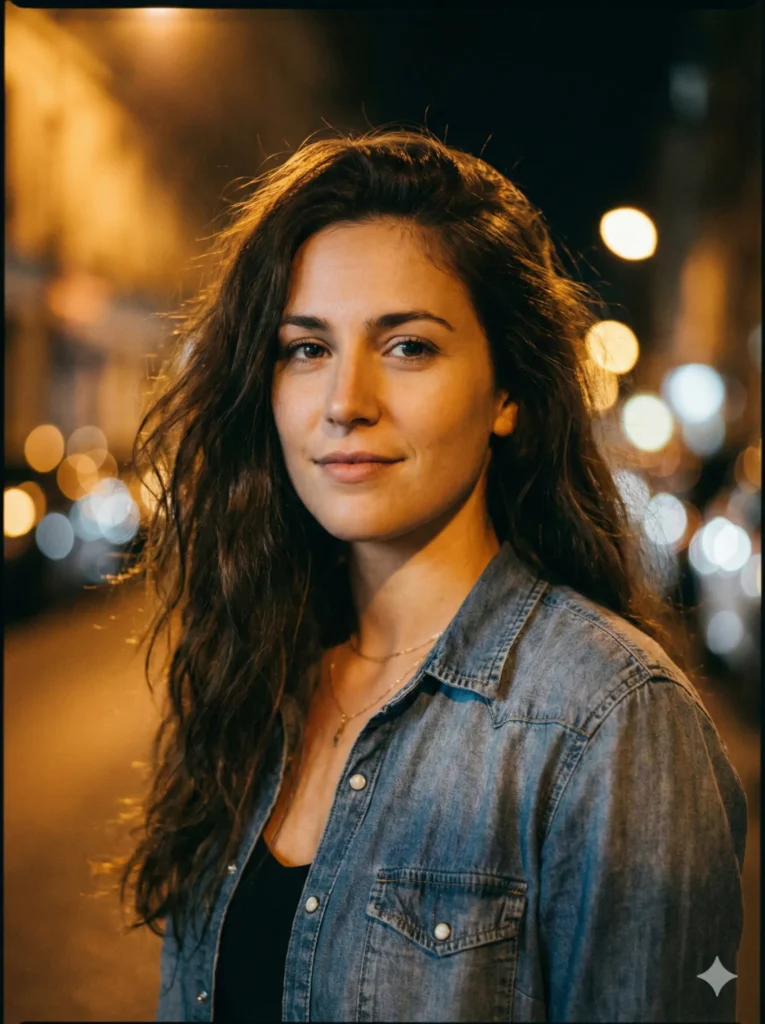
Following is the reference photo I used for the following prompts.
 How to Create a Personalized Comic Strip with Gemini
Seven Painting Styles to Try
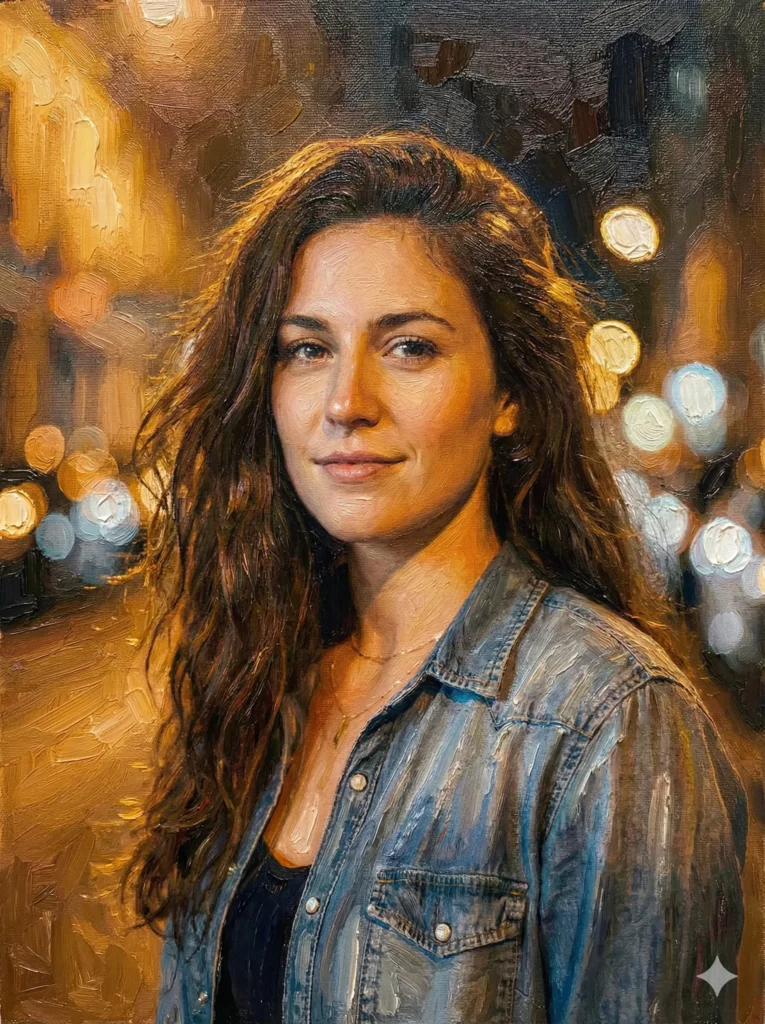
Oil Painting
Prompt: Create a portrait painted in thick oil textures with visible brush strokes. Use warm highlights, soft shadows, and a classic canvas surface. The face should stay detailed and natural with gentle color blending.
 How to Create Cute Halloween Characters Using Meta AI
This style gives you that classic, museum-quality look. The thick brushstrokes and warm tones make the image feel rich and timeless, like something you’d hang in a living room.
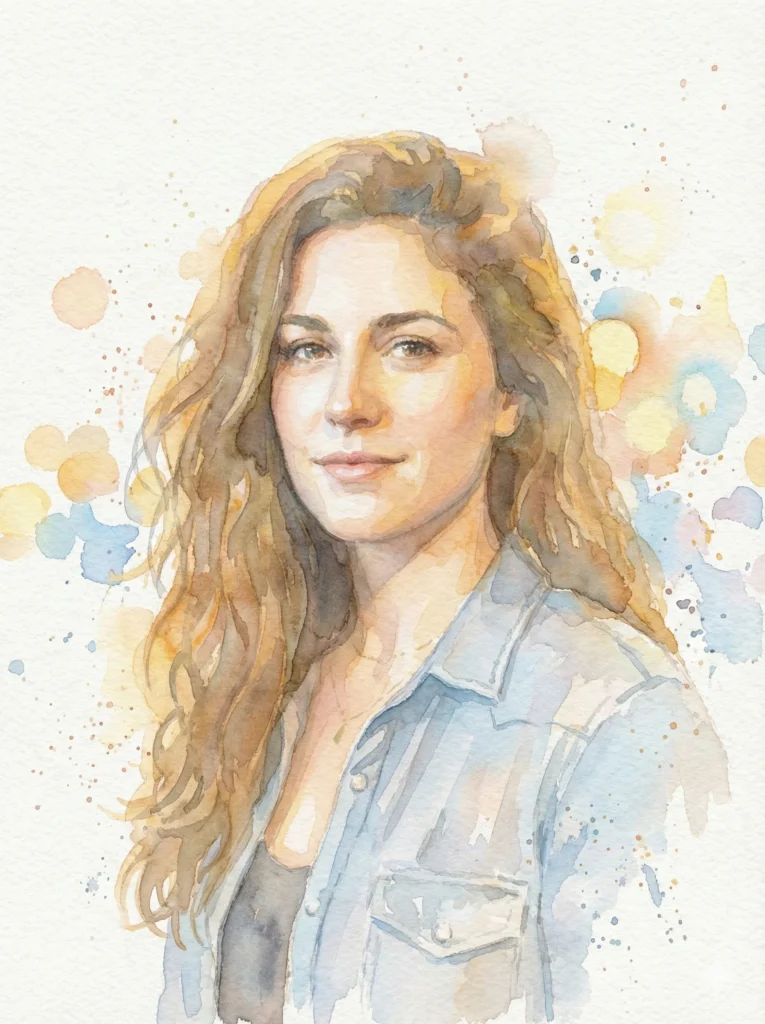
Watercolor Painting
Prompt: Create a watercolor version of this portrait with soft washes of paint, light bleeding edges, and pastel tones. Keep facial features recognizable while adding delicate splashes and a light paper texture.
 How to Create Beautiful 3D Cartoons Using Gemini Nano Banana
Watercolor has a gentle, flowing quality. The colors blend into each other softly, and the overall effect feels calm and artistic. Your photo becomes something almost dreamy.
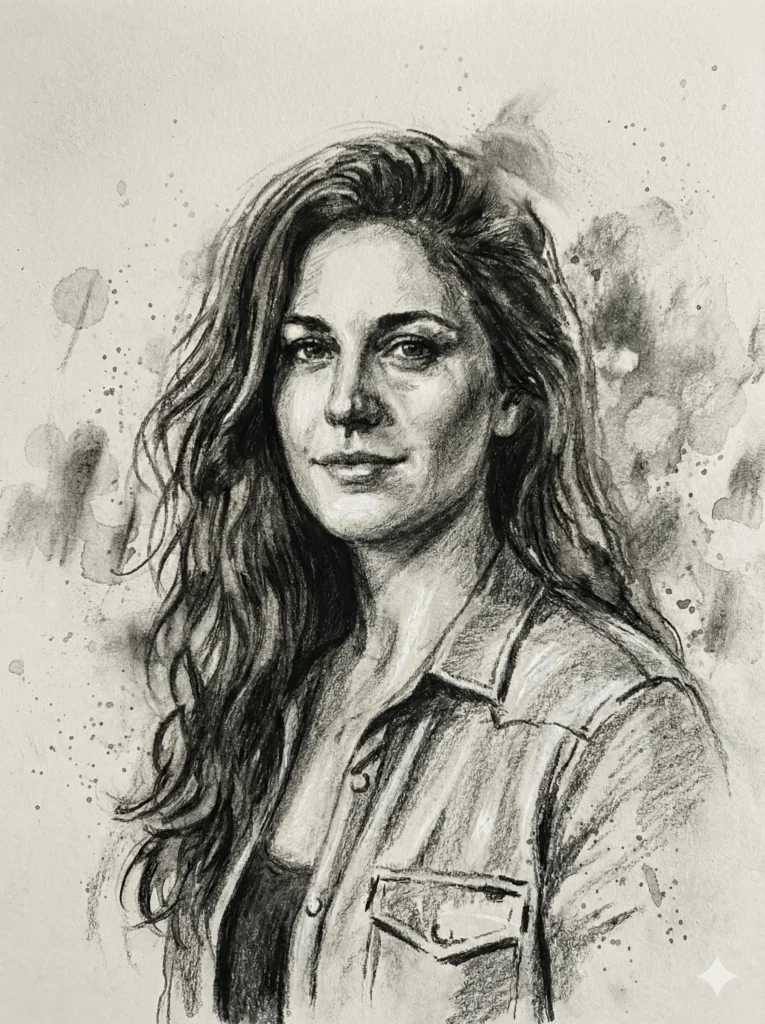
Charcoal Sketch
Prompt: Create a charcoal style portrait with strong contrast, rough shading, and natural smudges. Highlight contours of the face and hair while preserving accurate proportions. Add subtle grain from textured sketch paper.
 How to Create Cute Monsters Using ChatGPT
If you want something bold and dramatic, charcoal is the way to go. The strong lines and contrasts make the image pop. It looks like a professional artist spent hours sketching your portrait.
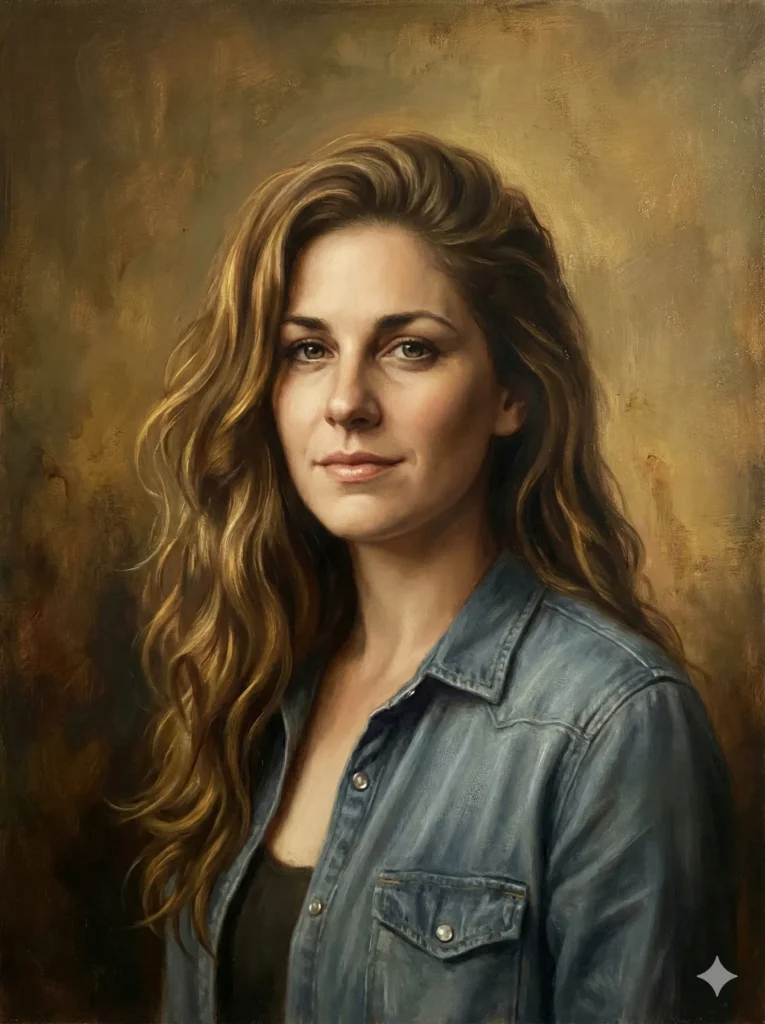
Renaissance Painting
Prompt: Create a portrait inspired by Renaissance art with soft golden lighting, smooth layered paint, and refined details. Add gentle shadows around the face and a traditional painterly texture while keeping realistic skin tone.
 How to Turn Your Photo into Line Art Using Gemini
Renaissance paintings have an elegance that feels timeless. The golden lighting and smooth brushwork give your photo a classical, refined appearance. It’s perfect if you want something that feels a bit more formal.
Van Gogh Style
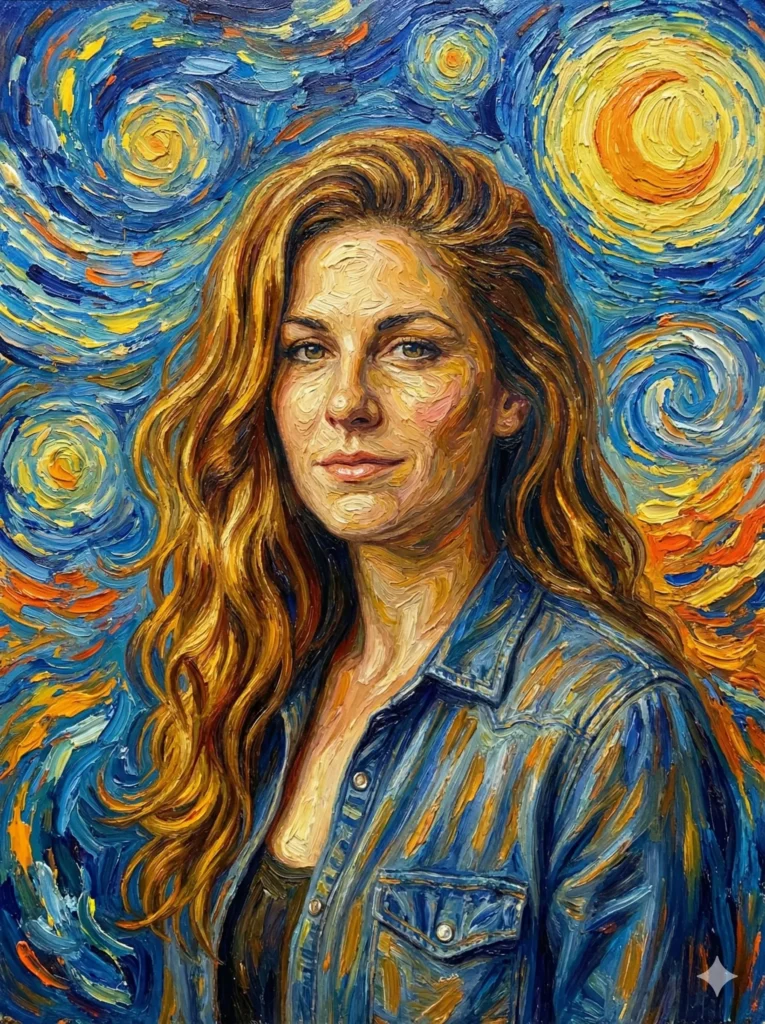
Prompt: Create a portrait inspired by Van Gogh with swirling strokes, vibrant colors, and energetic textures. Keep the structure of the face clear while applying bold streaks of blue, yellow, and orange across the background.
 How to Turn Your Photo into 3D Character Using Gemini Nano Banana Pro
Van Gogh’s work is instantly recognizable. The swirling brushstrokes and bold color choices make this style fun and energetic. Your photo takes on an almost eccentric, artistic personality.
Digital Painting
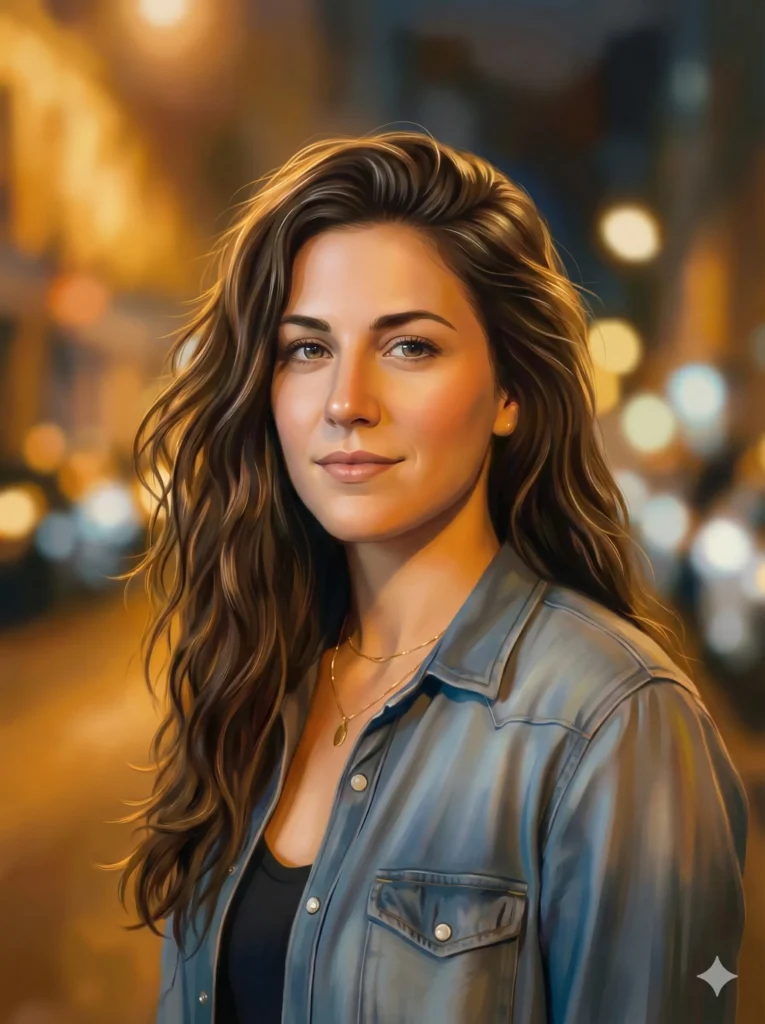
Prompt: Create a clean digital painting of this portrait with smooth brushwork, polished skin textures, and soft gradients. Keep every feature realistic while adding artistic highlights and a crisp illustrated look.
 How to Turn Your Photo into Beautiful Sketch Using Gemini Nano Banana
This style bridges the gap between photography and traditional art. It looks polished and modern while still maintaining that artistic quality. Your features stay clear and recognizable, but with an illustrated twist.
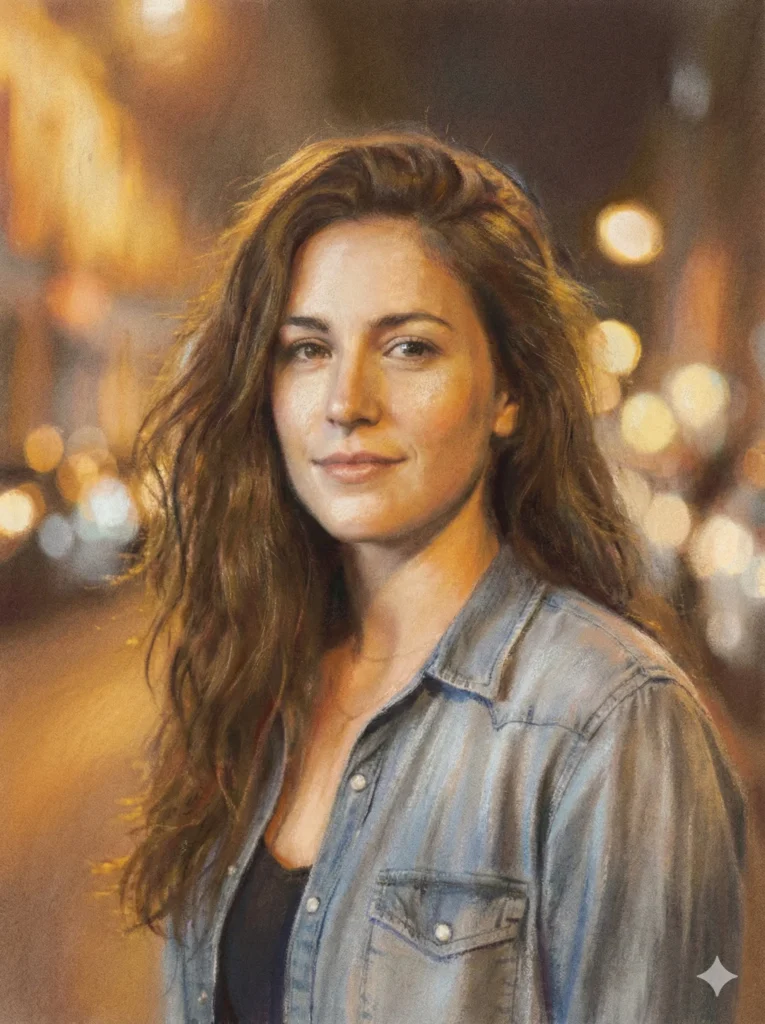
Pastel Painting
Prompt: Create a pastel portrait using soft chalk textures, blended tones, and gentle color transitions. Keep the face recognizable with lightly smudged shading and a velvety pastel surface.
 How to Create Paper Craft Illustrations Using ChatGPT
Pastels give a soft, dreamy quality to images. The colors blend smoothly together, and the overall feel is gentle and approachable. It’s like looking at your photo through an artistic lens.
Tips for Best Results
Use a clear, well-lit photo to get the most accurate outcome. Images with sharp details and defined features always produce stronger results than blurry or low-quality shots.
Experiment with different styles using the same photo. You’ll quickly notice how dramatically each artistic approach transforms the image—some styles may match your personality or vision better than others.
Don’t hesitate to tweak the prompts if you want a specific look. Gemini responds well to custom instructions, so small adjustments can help you achieve exactly the style you’re aiming for.
Transforming your photos into paintings is a fun and accessible way to see yourself or the people you care about in a completely new way. No artistic background, expensive tools, or advanced software needed—just a photo, a browser (or the app), and a few minutes.
Give it a try. Pick a style, run it through Gemini, and see what comes out. You might end up with a piece beautiful enough to print and hang on your wall.