How to Turn Your Photo into a Caricature Using Gemini, I’ve been experimenting with Google’s Gemini lately, and I discovered something pretty fun—you can turn normal photos into high-quality caricatures. Not the goofy, stretched-out ones you see at street fairs, but clean, stylized versions that still look professional.
Google recently introduced a model called Nano Banana Pro, and it’s ridiculously good at photo editing and realistic image generation. I tested it with all kinds of pictures, and it kept surprising me. It understands lighting, shadows, and facial structure well enough to exaggerate features without losing your identity. That balance is exactly what makes a caricature look good.
How I Created the Caricatures
Here’s the step-by-step process I used:
- Go to gemini.google.com or open the Gemini app.
- Start a new chat.
- From the model options, select Gemini 3 Pro.
This part is important—older versions just don’t produce the same level of detail or consistency.
After that, you’re ready to load your photo and start generating your caricature.
Next, attach your photo. Click the attachment icon and upload a clear photo of yourself or whoever you want to turn into a caricature. Front-facing photos work best. Make sure the face is well-lit and not blurry.
Now comes the fun part. Copy and paste this prompt into the chat:
Create a high quality digital caricature based on the reference photo. Keep the facial identity accurate while exaggerating the head size, smile, eyes, and ears in a fun and expressive way. Use bold clean outlines, smooth shading, and glossy highlights. Maintain the real hairstyle, skin tone, beard details, and glasses if present in the reference. Give the character a bright energetic expression. Keep the neck slightly elongated and the shoulders simplified to match the stylized look. Use a flat bold background color similar to illustrated caricatures so the character stands out clearly. Use aspect ratio 1:1.
Hit send and wait few seconds. That’s it.
My Test Results
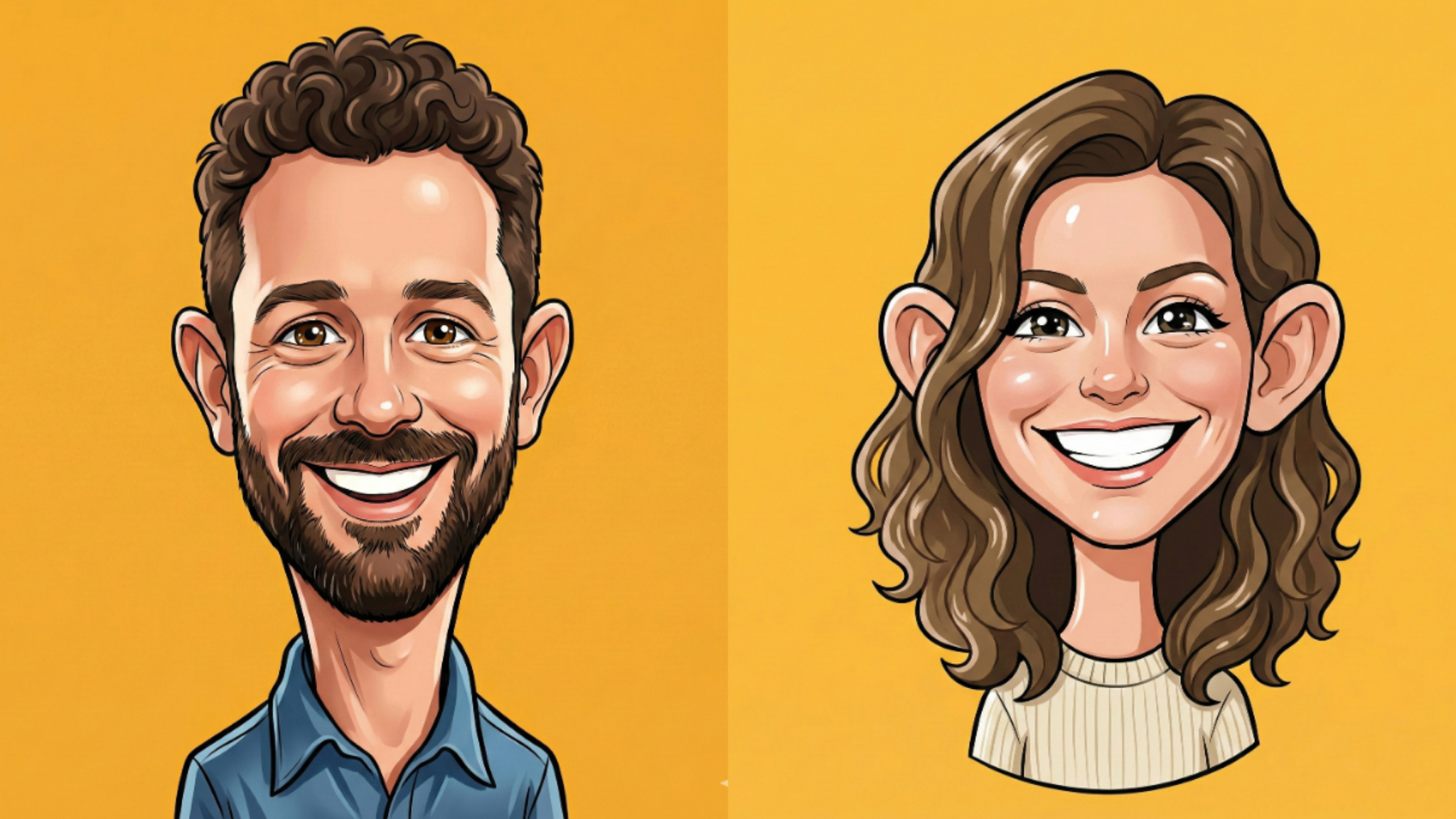
I tried it on two different images: a man with a beard and a woman with wavy hair. The results were impressive for both.
Here’s the reference photo of man.

 How to Turn Your Photo into Comic Book Illustration Using Gemini
The man’s photo came back with a bigger head, wider smile, and slightly larger ears. But you could still tell it was him. The beard looked natural, and the overall vibe was fun and friendly.

 How to Create Paper Craft Illustrations Using ChatGPT
Following is the reference photo of woman.

 How to Create Story Book Illustrations Using ChatGPT
The woman’s caricature kept her hairstyle intact but made her eyes more prominent and her smile brighter. The skin tone matched perfectly, and the simplified shoulders gave it that classic caricature look.

 How to Quickly Turn Your Photo into Cartoon Using ChatGPT
Both had that glossy, polished finish you see in professional illustrations. The backgrounds were solid color that made the characters pop.
Break Down of the Prompt
Let me explain what each part of that prompt actually does. Understanding this will help you modify it later.
- “Keep the facial identity accurate” tells Gemini not to turn the person into someone completely different. You want exaggeration, not transformation.
- “Exaggerating the head size, smile, eyes, and ears” is where the caricature magic happens. These are typically the features that get amplified in traditional caricatures.
- “Bold clean outlines, smooth shading, and glossy highlights” defines the art style. This gives you that digital illustration look instead of something hand-drawn or sketchy.
- “Maintain the real hairstyle, skin tone, beard details, and glasses” ensures accuracy. You’re not changing who the person is, just how they’re represented.
- “Bright energetic expression” sets the mood. Caricatures should feel lively and positive.
- “Neck slightly elongated and shoulders simplified” follows traditional caricature proportions. The big head needs a longer neck to balance it out.
- “Flat bold background color” keeps the focus on the face. No distracting elements.
- “Use aspect ratio 1:1” gives you a square image, perfect for social media profiles.
Customize Your Caricature
You can tweak this prompt to get different results.
Want to change the clothing? Add “dress the character in a red sweater” or whatever you prefer.
Need a different pose? Try “show the character from a three-quarter angle” or “include hands in a waving gesture.”
Want more or less exaggeration? Adjust phrases like “slightly exaggerate” or “dramatically amplify” depending on your taste.
You can even change the background. Instead of a flat color, try “place the character in a simple office setting” or “use a gradient background from blue to purple.”
I’ve spent maybe an hour total creating caricatures with Gemini, and I’ve made about a dozen that I actually love. Some I’ve used as profile pictures, others I’ve printed out as gifts.
The whole process feels less like using a tool and more like collaborating with a digital artist. You provide the photo and the direction, and Gemini handles the technical execution.
Try it out. Start with the basic prompt I shared, see what you get, then experiment with modifications. You might be surprised at how professional your results look.
And if you end up with something you really like, save it immediately. These AI-generated images don’t get stored permanently in your Gemini chat history, so download them right away.